How to Add Twitch Chat to Your OBS Stream

Has been streaming on Twitch since 2020 and grew her channel from an empty chat to a steady audience. Writes step-by-step guides for new streamers: getting started, picking a category and keeping your first viewers.
8 November 2026
Leer en españolЧитать на русском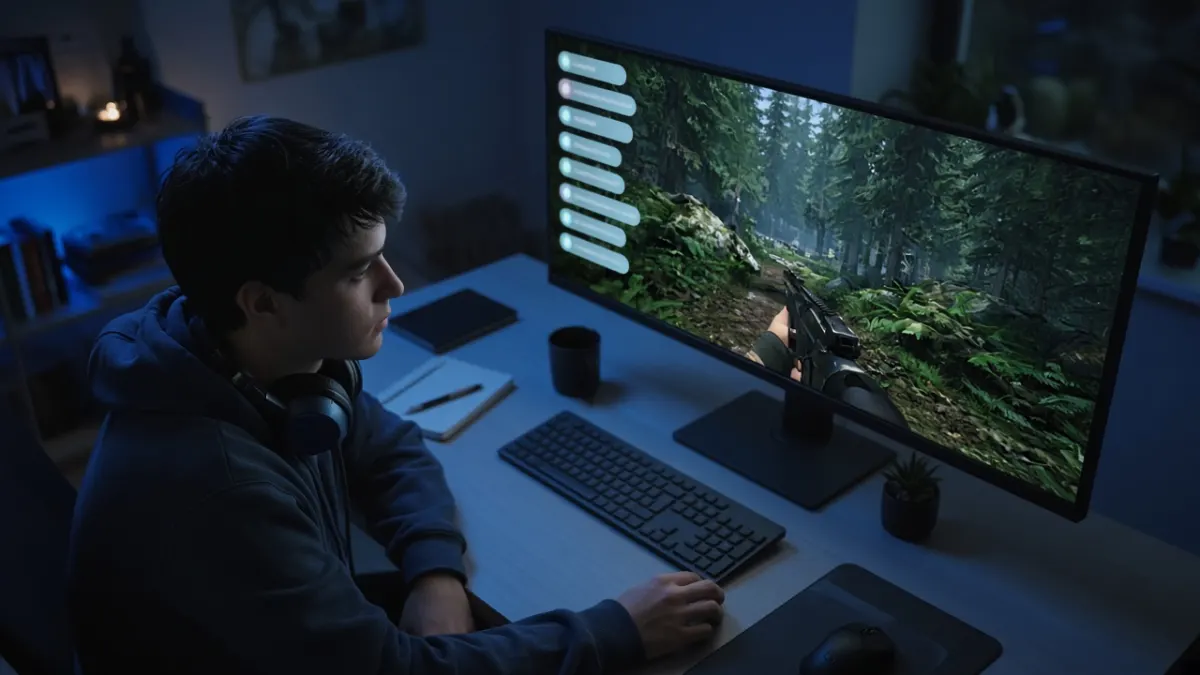
Short answer: To add Twitch chat to OBS, copy your popout chat link (https://www.twitch.tv/popout/yourchannel/chat), add a Browser source to the scene and paste the link into the URL field. Set the size in the source properties - about 350-400 px wide and 600-800 px tall on a 1920x1080 canvas - and add custom CSS if you want a transparent background over the game.
Viewers like seeing their own messages on stream. A username flashes in the corner, you read the line out loud, and that person is more likely to stay. It matters most in Just Chatting, reaction streams, and any game with pauses between fights. You do not need extra software to add Twitch chat to OBS: Twitch already has a page that shows only chat, and OBS can load it as a Browser source.
Chat on stream is not the same as the chat panel on your desk
If you connected your Twitch account in OBS, the program shows a chat dock. That dock is for you: you read it and reply, and viewers never see it. A custom browser dock under the View menu works the same way. It lives on your computer, not in the video you send out.
To put chat on screen for viewers, add it as a source in the scene. The rest of this guide is that path: Twitch's popout chat and a Browser source.
How to get the popout chat link
The straightforward way is to open it from Twitch itself.
- Open your channel on Twitch, either from the channel page or from Creator Dashboard.
- At the bottom of the chat panel, click the settings gear.
- Choose the option that opens chat in its own browser window.
- Copy the address from the browser's address bar.
If the window does not open, build the link yourself. Replace yourchannel with the channel login - the name in the URL, not the display name:
https://www.twitch.tv/popout/yourchannel/chat
You can force the dark theme with a parameter at the end: https://www.twitch.tv/popout/yourchannel/chat?darkpopout. Dark theme usually works better as an overlay, because a white panel jumps out against gameplay.
Do not paste the regular channel URL, such as twitch.tv/yourchannel, into OBS. The source needs the chat page. Otherwise the player, the about panel, and the rest of the channel will show up in frame.
How to add chat in OBS
- Open the scene that should show chat, usually your main gameplay scene.
- In the Sources list, click + and choose Browser.
- Give the source a clear name, for example "Twitch chat", and click OK.
- Paste the popout chat link into the URL field.
- Set width and height in the source properties. On a 1920x1080 canvas, a narrow column works well: about 350-400 pixels wide and 600-800 tall.
- Click OK and drag the source into the corner you want on the preview.
Set the size in the properties instead of stretching the source with the mouse. A Browser source draws the page at the width and height you type in. If you create it at 800x600 and then shrink it on the canvas, the text turns soft.
| Canvas size | Chat width | Chat height |
|---|---|---|
| 1920x1080 | 350-400 | 600-800 |
| 2560x1440 | 450-520 | 800-1000 |
| 1280x720 | 260-300 | 450-560 |
Then crop what you do not need. Hold Alt (Option on a Mac) and drag an edge of the source: that trims the chat header at the top and the input box at the bottom without scaling. Viewers do not need your settings row or a fake keyboard on screen - they need the message list.

How to make the background transparent
The Browser source already ships with this custom CSS:
body { background-color: rgba(0, 0, 0, 0); margin: 0px auto; overflow: hidden; }
That clears the page body, but Twitch's popout paints its own background on inner blocks. Without extra rules, you still get a solid dark or light rectangle. If you want chat sitting on top of the game, paste this into the Custom CSS field:
body {
  background-color: rgba(0, 0, 0, 0) !important;
  margin: 0px auto;
  overflow: hidden;
}

html, body,
.popout-chat-page,
.chat-room,
.chat-container,
.stream-chat-container,
.tw-root--theme-dark,
.tw-root--theme-light {
  background: transparent !important;
  background-color: transparent !important;
}

.stream-chat-header,
.chat-input {
  display: none !important;
}

.chat-line__message {
  color: #ffffff !important;
  text-shadow: 1px 1px 2px #000000, -1px -1px 2px #000000;
}
The inner containers turn transparent, the header and input hide if you did not crop them, and messages get a dark outline. That outline keeps white text readable on a dark map and on snow.
Twitch changes the page markup from time to time. If the background comes back after a site update, open the source properties and click Refresh cache of current page. If that does not help, the CSS class names may have changed, and the rules need a small update. It is worth glancing at chat in the preview now and then, not only on the day you set it up.
Check readability on your brightest scene, not against the dark OBS editor. Text that looks fine on black can vanish against a bright sky or a pale game menu. If the outline is not enough, use a light tint instead of full transparency: in the CSS, change transparent to rgba(0, 0, 0, 0.35) on the chat containers.
Options worth turning on
Refresh browser when scene becomes active. If you jump between Game, BRB, and Starting Soon, chat sometimes freezes and stops showing new messages. This option reloads the page when you come back to the scene and usually fixes it.
Shutdown source when not visible. With this checked, OBS unloads the page on scenes that do not include chat, which saves CPU. The tradeoff is that chat reconnects every time the scene appears and can sit empty for a moment. If you switch scenes often and want the message list to keep running, leave the box unchecked.
If a cookie banner or a sign-in prompt covers the feed, right-click the source and choose Interact. Close the banner in that window. You do not need to log in just to display messages: a channel's public chat loads without an account.
The same Browser source method works for other on-stream elements. A stream timer for OBS is added the same way: paste its link into the URL field.
Where to place chat so it does not get in the way
Chat should not cover what viewers watch in the game: health, the minimap, the crosshair, subtitles, or the inventory. Most people pin it to the left or right edge, wherever that game has less HUD, and keep it a little above or below the webcam so the two blocks do not collide.
Do not stretch the column across a third of the screen. On a 1080p canvas, 350-400 pixels is enough for names and short lines while the game stays in front. If you stream a first-person shooter, check that chat does not sit where muzzle flashes and the crosshair appear.
If you still need to set up the basics - stream key, bitrate, scenes - start with How to set up OBS for Twitch.
If chat does not show up or looks wrong
| What you see | What to try |
|---|---|
| An empty black or white box | Make sure the URL is /popout/yourchannel/chat, not the channel page. Then click Refresh cache of current page. |
| Chat appears, but with a solid background | Add the CSS from the section above. The default body rule is not enough. |
| Messages stop after you switch scenes | Turn on refresh when the scene becomes active. If "shutdown source when not visible" is getting in the way, uncheck it. |
| Text disappears over bright gameplay | Strengthen text-shadow or bring back a light dark panel. |
| A banner or login window covers the feed | Right-click the source, choose Interact, and dismiss the banner. |
| Every Browser source stays blank | In Settings - Advanced, try toggling browser source hardware acceleration, then restart OBS. |
If messages appear only after someone writes again, that is normal: the page shows the live feed from the moment it loaded. Send a test message from a second account or ask a friend to type in chat.
Wrap-up
To add Twitch chat to your OBS stream, you only need the channel's popout chat and a Browser source. Set the size in the properties, crop or hide the header and input, make the background transparent, and check the text on a bright scene. You do not need a separate program for this.
Once chat is on screen, the next problem is having people write in it. We covered the quiet-chat side separately in Empty Twitch chat? How to revive engagement. And if you want to see how the stream looks when people are already joining, booststream.net has a free test: 10 viewers for an hour. Paid Twitch viewers start at $0.02 for 5 viewers for 1 hour.